


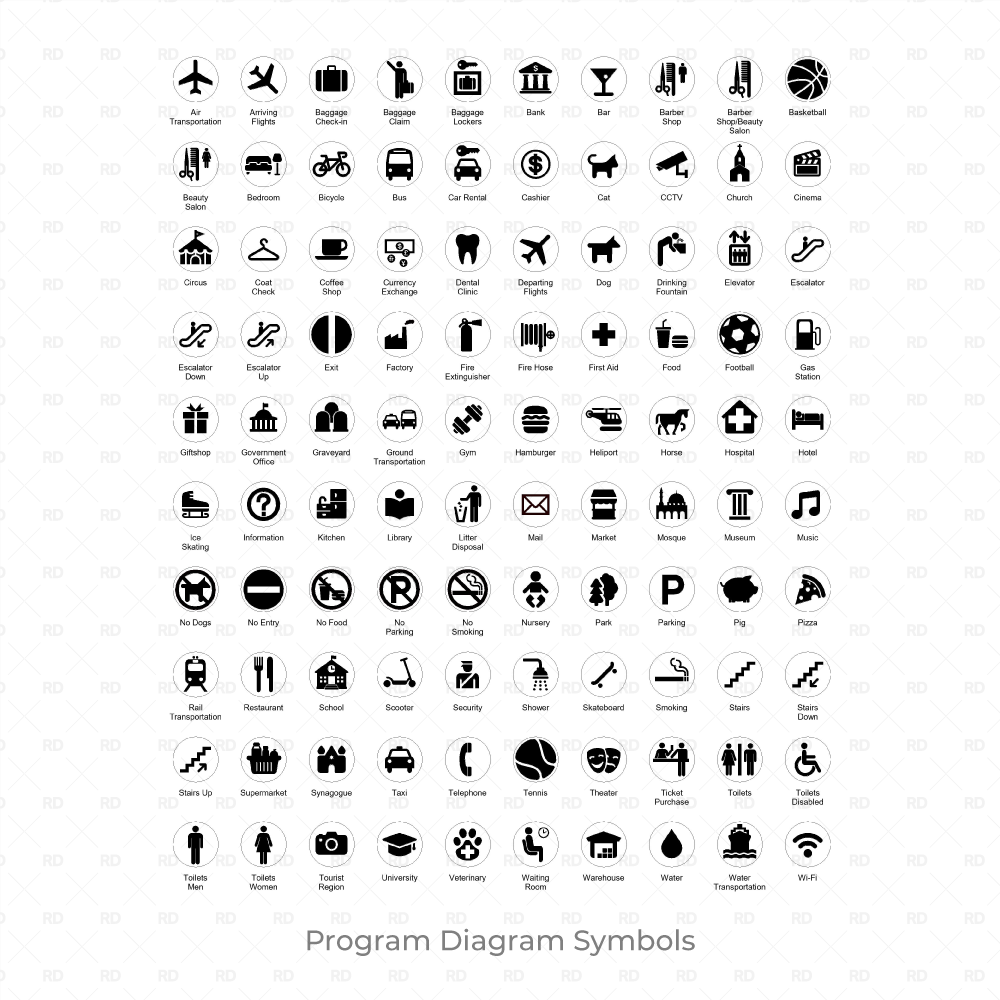

Revit 2D Symbols – Site Analysis and Program Diagram Icons
100 Revit 2D Symbols for Diagrams and Presentation
A pack of 100 Revit 2D Symbols (rfa. File) for Revit 2020 of most popular uses and program icons for sections, elevations, plans, callouts and sheets – graphics based on the AIGA international signs.
Revit Program Diagrams Made Easy
Create beautiful diagrams and graphics in Revit without using additional software! Perfect for site analyzise, urban diagrams, program diagrams, legends, presentation boards, and competitions.
Looking for graphic presentation assets for Revit?
This pack is perfect for diverse architecture, landscape and urban planning projects as it contains everything you need to create an architectural program diagram in Revit.
Revit 2D Symbols pack Includes the following icons:
Telephone, mail, currency exchange, cashier, first aid, coat check, baggage lockers, escalator, escalator down, escalator up, stairs, stairs down, stairs up, elevator, toilets men, toilets women, toilets, nursery, drinking fountain, waiting room, information, hospital, library, bank, park, water, school, supermarket, church, mosque, synagogue, factory, museum, university, warehouse, dental clinic, filling/gas station, veterinary, market, theater, circus, pizza, ice skating center, football, gym, pig, dog, Bike, scooter, tennis, info, shower, music, cinema, hamburger, Basketball, Bedroom, Cat, CCTV, Fire Hose, Food, No-Food, Giftshop, Government Office, Graveyard, Horse, Kitchen, Security, Shower Men, Shower Women, Skateboard, Toilets Disabled, Tourist Region (Sightseeing), Wi-Fi.
How to Create a Site Analysis Diagram in Revit
Placing a Symbol in 2D Views
To place a Revit Symbol, load the Family into your project and go to the Annotate Tab > Symbol. To Place Revit 2D Symbols in a 2D View (Floor plans, sections, elevations, and legends), simply use the Annotate > Symbol Tool.

Placing a Symbol in 3D Views
To place Revit 2D Symbols in a 3D view, you must first lock that view by clicking on Save Orientation and Lock View.

Revit has a limitation when it comes to placing 2D Symbols in 3D View. To overcome it, we need three things:
- Save Orientation and Lock View
- Turn on your Section Box
- Copy 2D Symbols from other views and Paste them inside a 3D View.
Check our tutorial below for the complete process:

Revit 2D Symbols Graphics
Line weights will be updated according to your Line Weights options (Generic Annotations category).
To access the Symbol Layers, click Visibility / Graphics > Imported Categories.

Each Revit Symbol has four layers that can be turned on and off:
- Inner Fill
- Fill
- Inner Lines
- Boundary Lines

Adjust the Revit 2D Symbols to your needs:

Revit 2D Symbols Leader Type (Arrowhead)
A leader can be added to each Symbol, and the arrowhead can be changed from the Type Properties menu (Edit Type).

Reviews
There are no reviews yet.